
What it covers
Switch between personal and team views, change the time window, and open the records behind a number.
Customer management
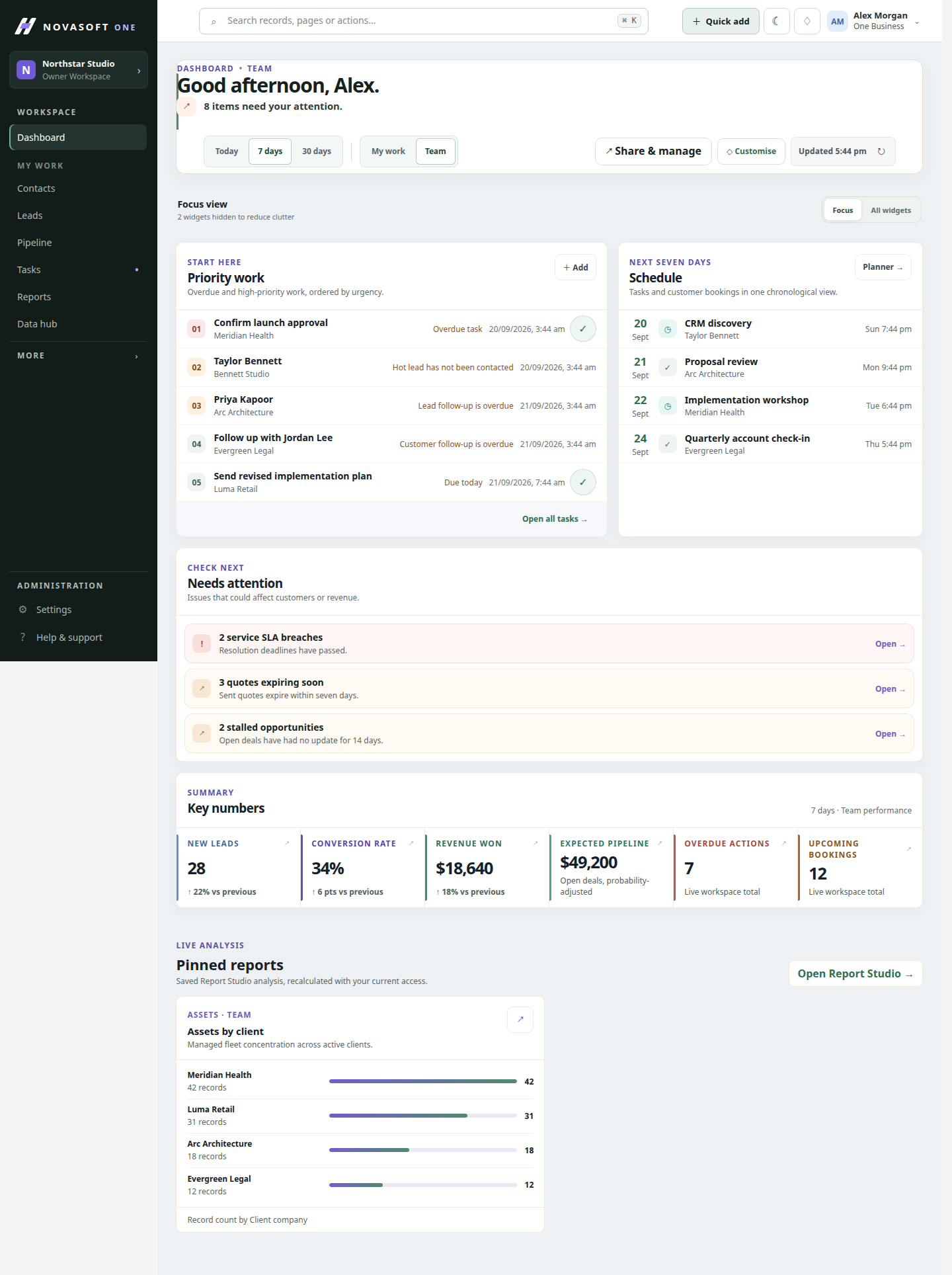
A starting point for priority work, schedules, attention items and key numbers.
How it works
See priority work, upcoming schedules, items needing attention and key measures in one place. Use the dashboard to decide what needs attention first.
Switch between personal and team views, change the time window, and open the records behind a number.
Complete an eligible task from Priority work, or open a scheduled task or booking to continue in its record.
When to use it
A working path
Switch between your personal workload and the team view, then select a useful time window. This keeps the first scan focused on the work and period you are responsible for.
Check priority work, scheduled items, attention notices and key numbers. Treat a count as a starting point: open its source records to see which customers or tasks make it up.
Open a priority task or booking from its panel and take the available action there. The dashboard is a route into operational records, not a separate place where they are maintained.
Illustrative scenario
A service lead can scan team priorities and today’s bookings, open a task that needs follow-up, and then review the underlying customer record before assigning the next action.
Before you start
Some priority tasks and scheduled records open in an action panel. The record remains the source of truth for changes.
Personal versus team scope, time window and workspace permissions can change what appears.
Get started
Start with the core CRM for free, then add the tools your team needs.