
What it covers
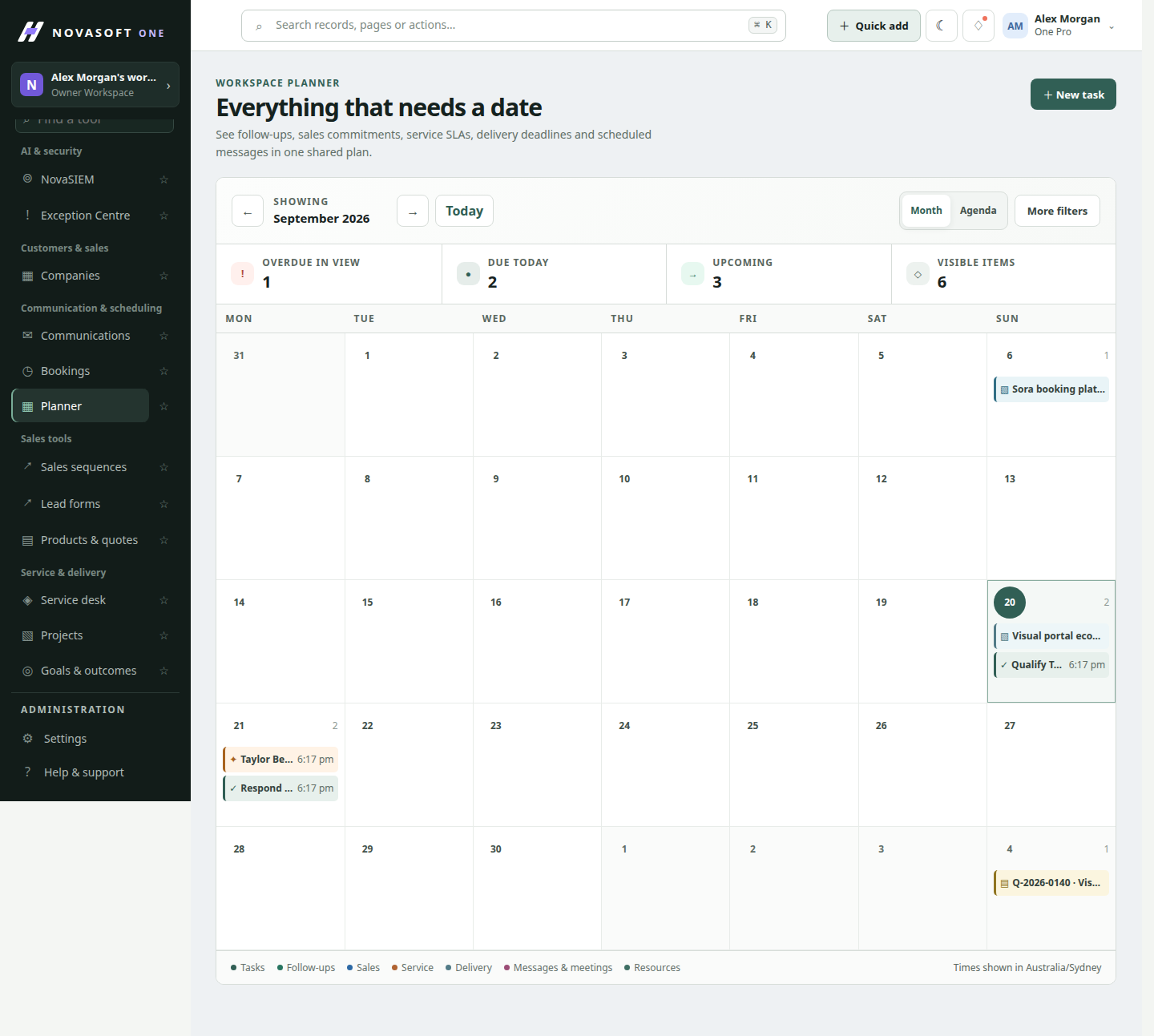
Bring tasks, follow-ups, deal dates, service deadlines, bookings, projects and scheduled messages into one calendar.
Forms and bookings
See work and dates together in month and agenda views.
How it works
Bring the team’s upcoming commitments into month and agenda views. Planner combines supported work items so people can see what is due without rebuilding a second calendar by hand.
Bring tasks, follow-ups, deal dates, service deadlines, bookings, projects and scheduled messages into one calendar.
View tasks, follow-ups, deal dates, service deadlines, bookings, projects and scheduled messages.
When to use it
A working path
Switch between month and agenda layouts and move to the period you are planning. Use the view that makes it easiest to scan dates without assuming all entries have the same owner or workflow.
Inspect supported tasks, follow-ups, deal dates, service deadlines, bookings, projects and scheduled messages. Open an item to continue in its source record and confirm current details.
When dates compete, contact the relevant owner and update the source record or task with the agreed plan. Planner helps reveal timing together; it does not replace each module’s assignment and status controls.
Illustrative scenario
A coordinator scans the agenda, sees a customer booking near a project milestone and a service deadline, then checks each source record and asks the owners to confirm coverage.
Before you start
Supported entries include tasks, follow-ups, deal dates, service deadlines, bookings, projects and scheduled messages.
Items continue through their source workflow, which determines available actions and permissions.
Get started
Start with the core CRM for free, then add the tools your team needs.